

 Platform
 W&B Models
 W&B Weave
 W&B Inference
 W&B Training
 Release Notes
weave.publish, W&B Weave creates an immutable version. Each version can be referenced by name and version, retrieved in code with weave.ref(...).get(), and viewed in the Weave UI.
Prompt versions
Prompts in Weave are stored as versioned objects. This allows you to safely iterate on prompts while ensuring that evaluations, experiments, and production systems can reference the exact prompt version they were run with. Prompt versions are accessed using Weave object references. This page explains how prompt versions are created, how to retrieve a specific version in code, and how to inspect and compare versions in the Weave UI.How prompt versions are created
Weave automatically tracks every version of your prompts, creating a complete history of how your prompts evolve. This versioning system is crucial for prompt engineering workflows, allowing you to experiment safely, track what changes improved or hurt performance, and easily roll back to previous versions if needed. Each time you publish a prompt with the same name but different content, Weave creates a new version while preserving all previous versions. Each version is immutable. Once created, the contents of that version cannot be changed. If you update a prompt and publish it again, Weave creates a new version while preserving previous versions. Versioning enables you to:- Reproduce past experiments.
- Safely iterate on prompt changes.
- Roll out prompt updates in a controlled way.
Construct a fully qualified ref URI
Weave objects can be uniquely identified using a fully qualified ref URI. A fully qualified Weave object ref URI looks like this:- your-team-name: W&B entity (username or team name)
- your-project-name: W&B project
- object_name: object name
- object_version: either a version hash, a string like
v0orv1, or an alias like:latest. All objects have the:latestalias.
Retrieve a prompt version in code
To retrieve a prompt, create a reference to its name and version, then call.get() to load it. A ref points to a stored object; .get() fetches that object so you can use it in your application.
You can construct refs with a few different styles:
weave.ref(<name>): Retrieves the:latestversion of a prompt. Requires callingweave.init(...).weave.ref(<name>:<version>): Retrieves the specified version of a prompt. Requires callingweave.init(...).weave.ref(<fully_qualified_ref_uri>): Retrieves the prompt located at the specified fully qualified ref URI. Does not require callingweave.init.
support_prompt:v3 version so you can use it in your application:
Use prompt versions in production
When deploying prompts in production systems, pin a specific prompt version rather than referencing the latest version. In your production application, load that version withweave.ref(<name>:<version>).get().
Pinning a version ensures that production behavior remains stable even if new prompt versions are published later.
A common workflow looks like this:
- Develop and test a new prompt version.
- Evaluate the new prompt against datasets or evaluation suites.
- Update the production system to reference the new version.
View and compare prompt versions
To view versions of the prompt in the UI:- Navigate to wandb.ai and select your project.
- In the Weave project sidebar, click Assets. This opens the Assets page.
- In the Assets page, click Prompts. This opens the Prompts page where your project’s prompts are listed.
- Under the Versions column, click (x) Versions for the prompt you want to view. This opens a list of prompt versions.
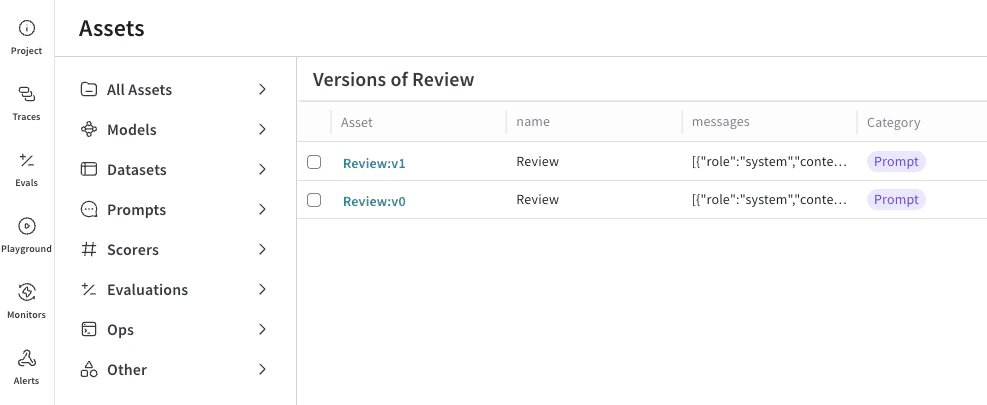
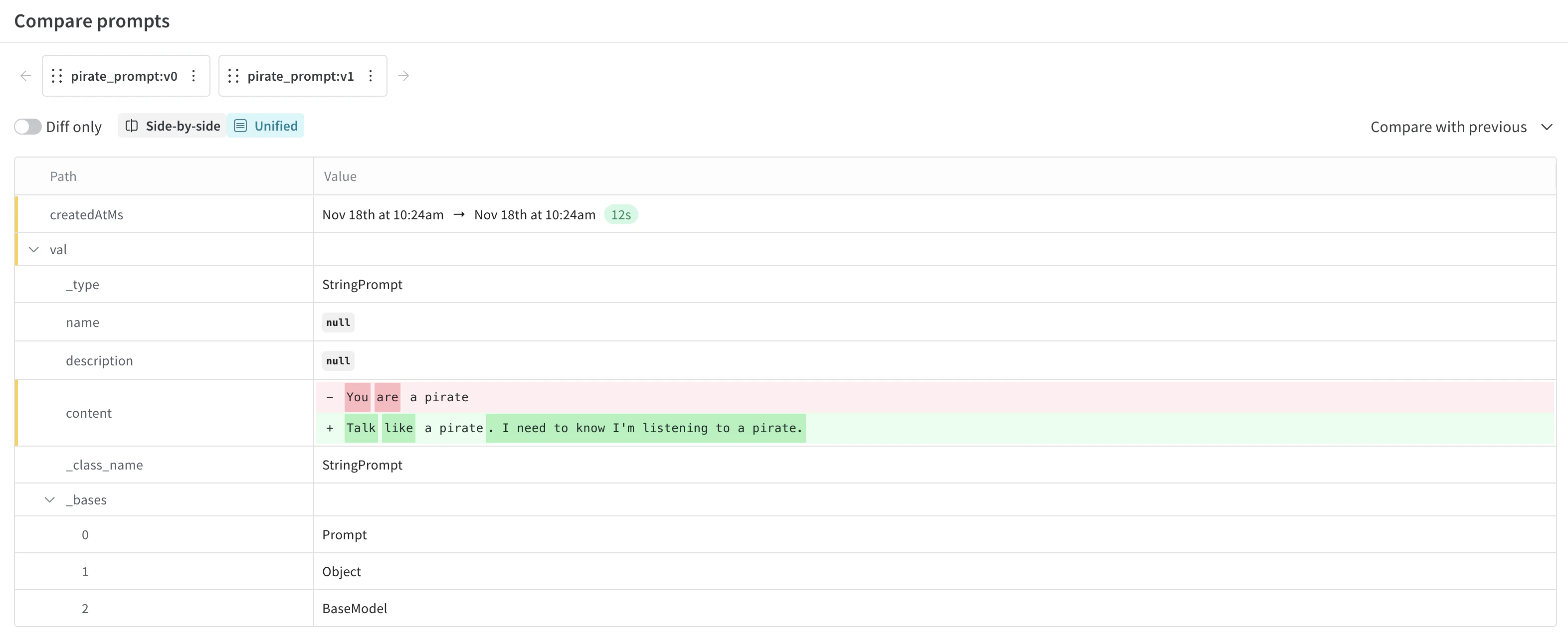
- (Optional) You can compare versions of prompts by clicking the checkboxes beside the listed prompts and then clicking the Compare button in the table toolbar. This allows you to see the diff between your prompts.
Prompt tags and aliases
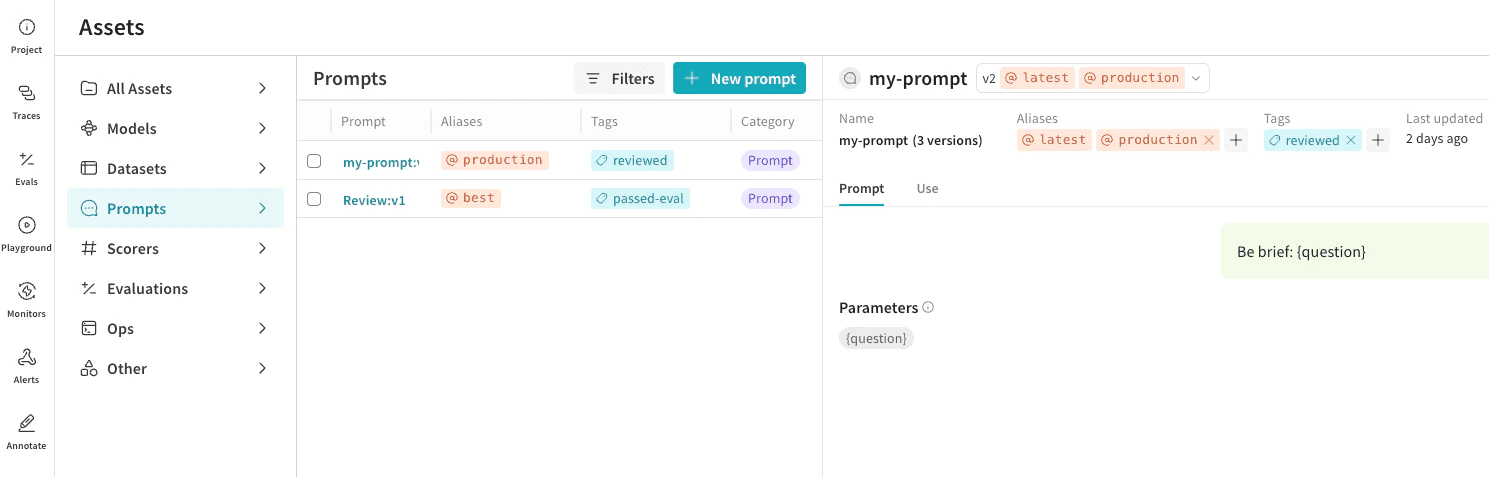
You can organize prompt versions using aliases and tags. These labels help identify and reference specific versions.- Aliases are named pointers to a specific prompt version.
- Tags are labels applied to a specific prompt version.
- In the Weave project sidebar, click Assets. This opens the Assets page.
- In the Assets page, click Prompts. Note that you can view assigned
AliasesandTagsin the table. - In the Prompts table, click the link of the prompt you want to change.
- In the prompt detail panel for your selected prompt, the title bar displays the name of the prompt and a specific version. Choose the version of the prompt you want to update.
- In the panel toolbar, use the controls to add and remove assigned aliases and tags to this specific version.
Modify tags and aliases in code
Tags and aliases can also be managed in code, such as publishing prompts with tags and aliases inline, pointing aliases at specific versions and resolving them to load prompts, and adding, removing, or listing tags and aliases on versions. The following code example will add a promptmy-prompt to your project with three versions, each having various tags and aliases. Update 'your-team-name/your-project-name' accordingly for your project.